
From installation to everyday use
Install MixSo Quick, set up shortcuts, and learn to manage plugins and sync your settings across devices.
Setup and everyday actions
Read from top to bottom the first time. Return to any step when you need it later.
Download and install MixSo Quick
Choose the correct installer, finish installation and allow MixSo Quick to start.
- Choose Windows x64 or the macOS installer for Apple Silicon and Intel.
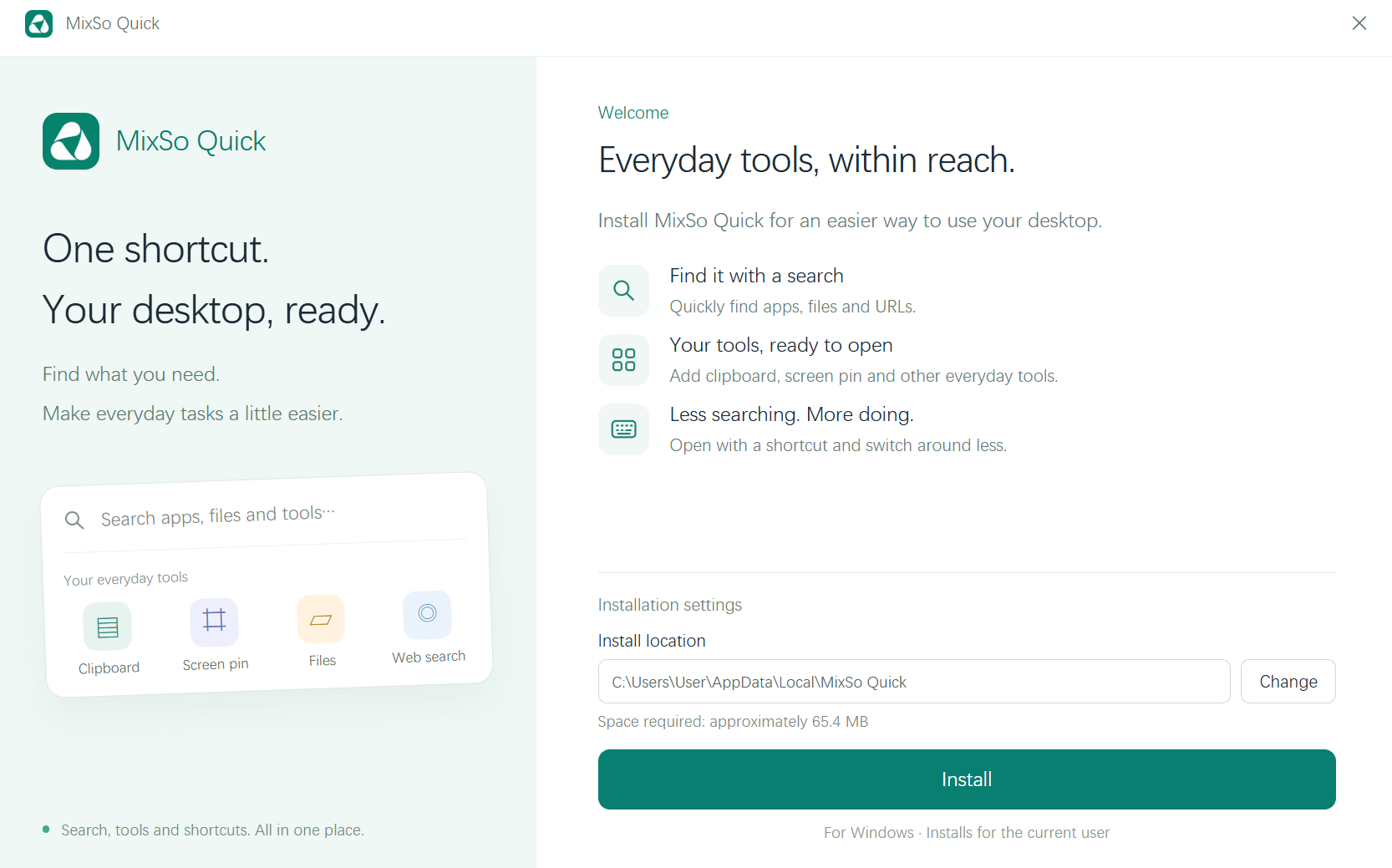
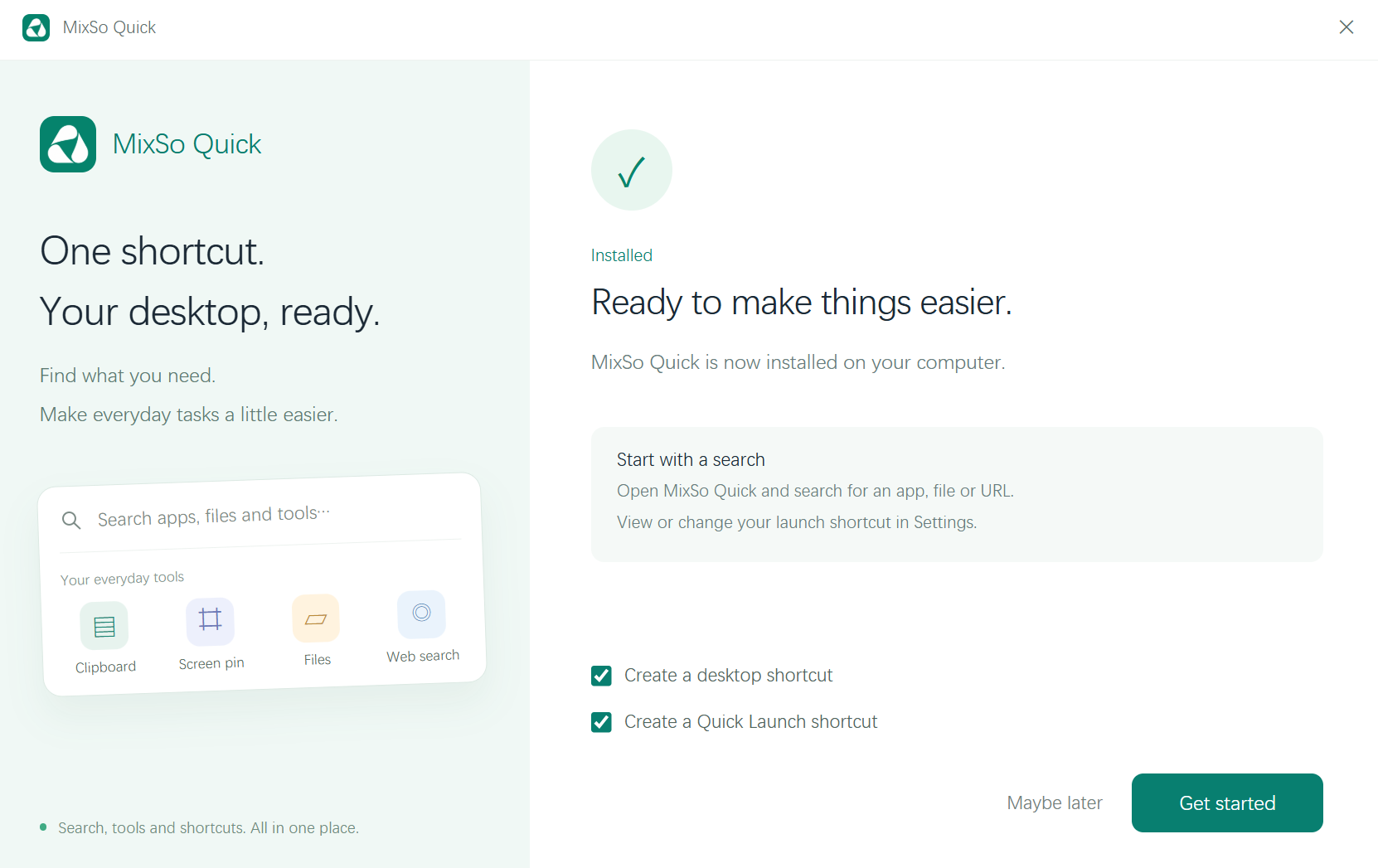
- Run the installer and follow the system prompts.
- Open MixSo Quick once and keep automatic updates enabled.
Windows installation walkthrough. The screenshots show the English installer; macOS uses a different installation flow.
Open MixSo Quick for the first time
Use the global shortcut from any application to bring MixSo Quick forward.
- Press the global shortcut shown during setup.
- If nothing appears, check whether another app uses the same shortcut.
- Press Esc to close MixSo Quick and return to the current task.
Search and open what you need
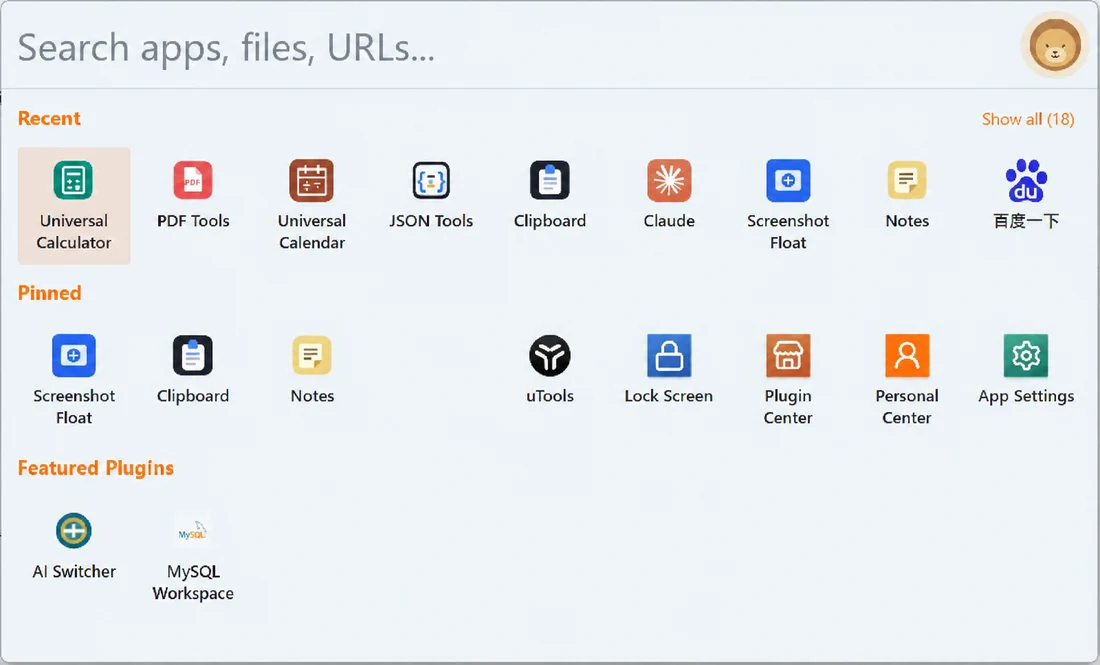
The main search combines apps, files, URLs and installed plugins.
- Start typing immediately after MixSo Quick opens.
- Use ↑ and ↓ to choose a result, then press Enter to open it.
- Pin frequently used results so they stay on the MixSo Quick home screen.
Install and manage plugins
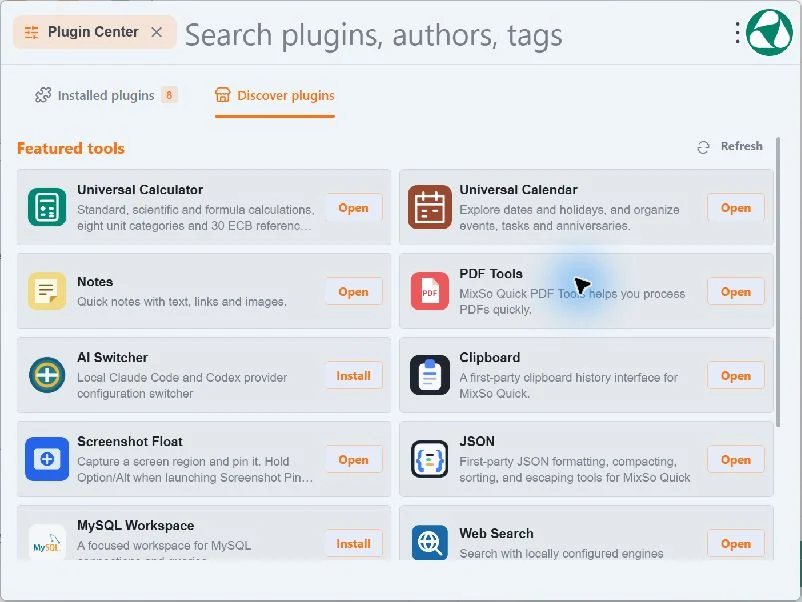
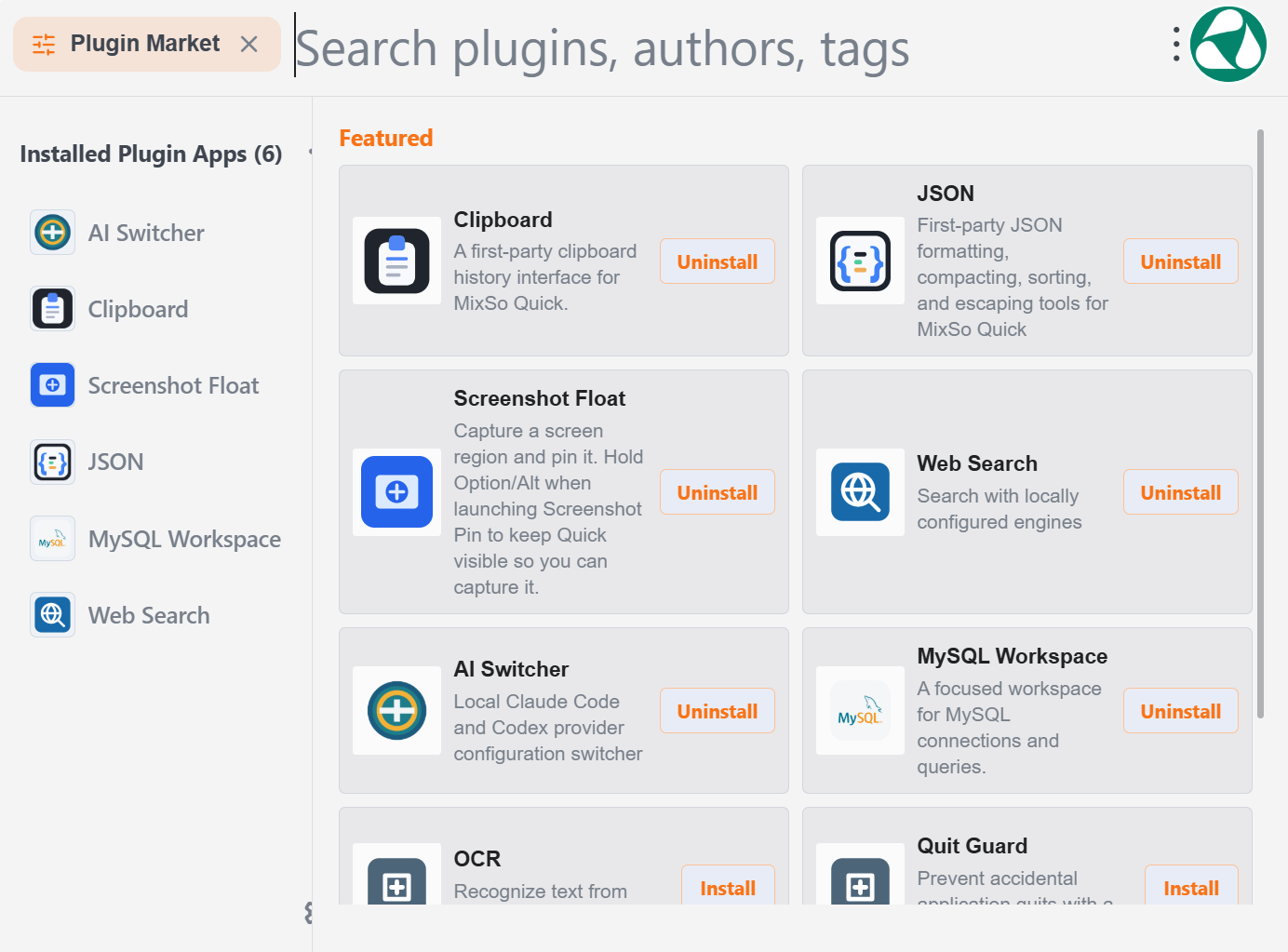
Plugin Center is where tools are installed, updated and removed.
- Open Plugin Center from the MixSo Quick home screen.
- Review the plugin description and its local, network or AI permissions.
- Choose Install. Updates and removal remain available in the same place.
Set shortcuts for frequent plugins
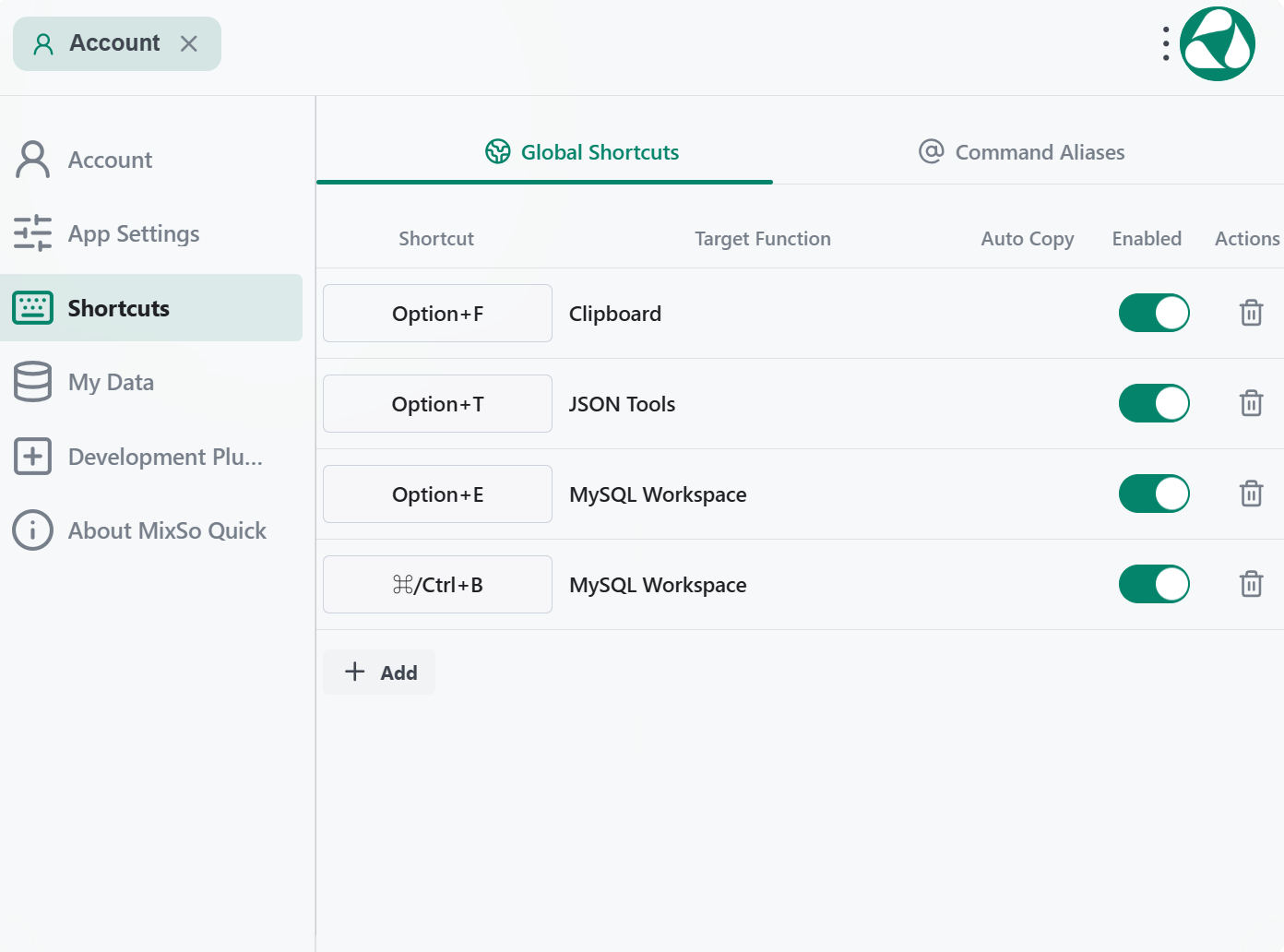
A plugin shortcut opens the tool directly, without showing the MixSo Quick home screen.
- Open App Settings from the MixSo Quick home screen, choose Shortcuts in the sidebar, then select Global Shortcuts.
- Choose Add to create a shortcut for a tool, or select an existing shortcut field to change its key combination.
- Check the Target Function and keep Enabled switched on, then try the shortcut from another application.
- If the shortcut conflicts with another app, choose a different combination. The keys in the screenshot are examples, not required defaults.
Build a simple daily workflow
Let the main shortcut handle discovery and plugin shortcuts handle repeated actions.
- Use the MixSo Quick shortcut when you need to search across different content types.
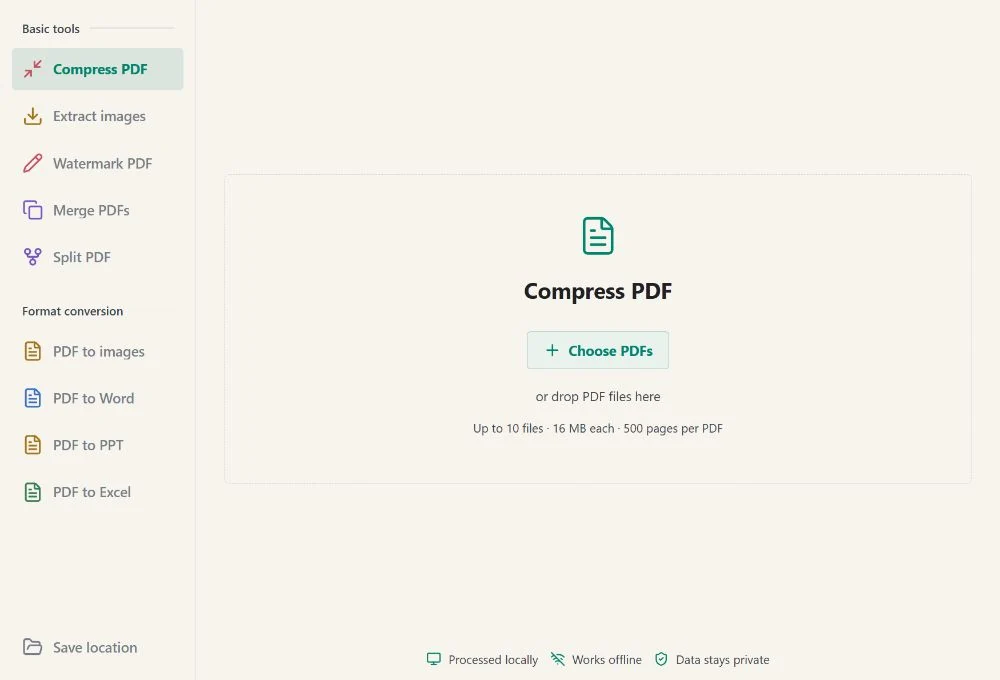
- Use a plugin shortcut for repeated tasks in Clipboard, Screenshot or PDF Tools.
- Manage startup, language, sync and updates from MixSo Quick settings.
Keep your MixSo Quick setup across devices
Sync is available after you sign in. It keeps your plugin list, shortcut preferences and product settings consistent across your devices.
Sign in to your MixSo account
Open the account entry in MixSo Quick and use the same account on each device. Signing in is optional when you use only one device.
Turn on multi-device sync
Once enabled, MixSo Quick syncs supported settings. Clipboard contents and local files are not treated as account settings.
Update MixSo Quick and manage plugin versions
Product updates and plugin updates are handled separately. MixSo Quick keeps itself current, while Plugin Center shows actions for each installed plugin.
Update MixSo Quick
MixSo Quick checks for product updates automatically. When a new version is ready, follow the prompt and restart the app to finish.
Update or uninstall a plugin
Open Plugin Center. Choose Update when a newer plugin version is available, or Uninstall to remove a plugin you no longer need.
Solve the most common problems
Check shortcuts, startup and permissions before reinstalling the whole app.
- MixSo Quick does not appear: check shortcut conflicts and whether MixSo Quick is running.
- A plugin cannot access content: review its declared system permissions.
- A single plugin fails: update, disable or reinstall only that plugin.
Plugin tutorials
Choose a plugin to learn its main actions, setup steps and permissions.